Add the person you're looking at to HubSpot
You're on someone's profile and want them in your CRM. Instead of copying six fields across two tabs, you say one sentence in the side panel.
What you say
“Add this person to HubSpot as a contact, at their company, with the lifecycle stage Lead.”
What Fatmira does
- It reads the page you're on. Name, job title, company and email come from the profile in your tab. Nothing is looked up elsewhere, and nothing is guessed.
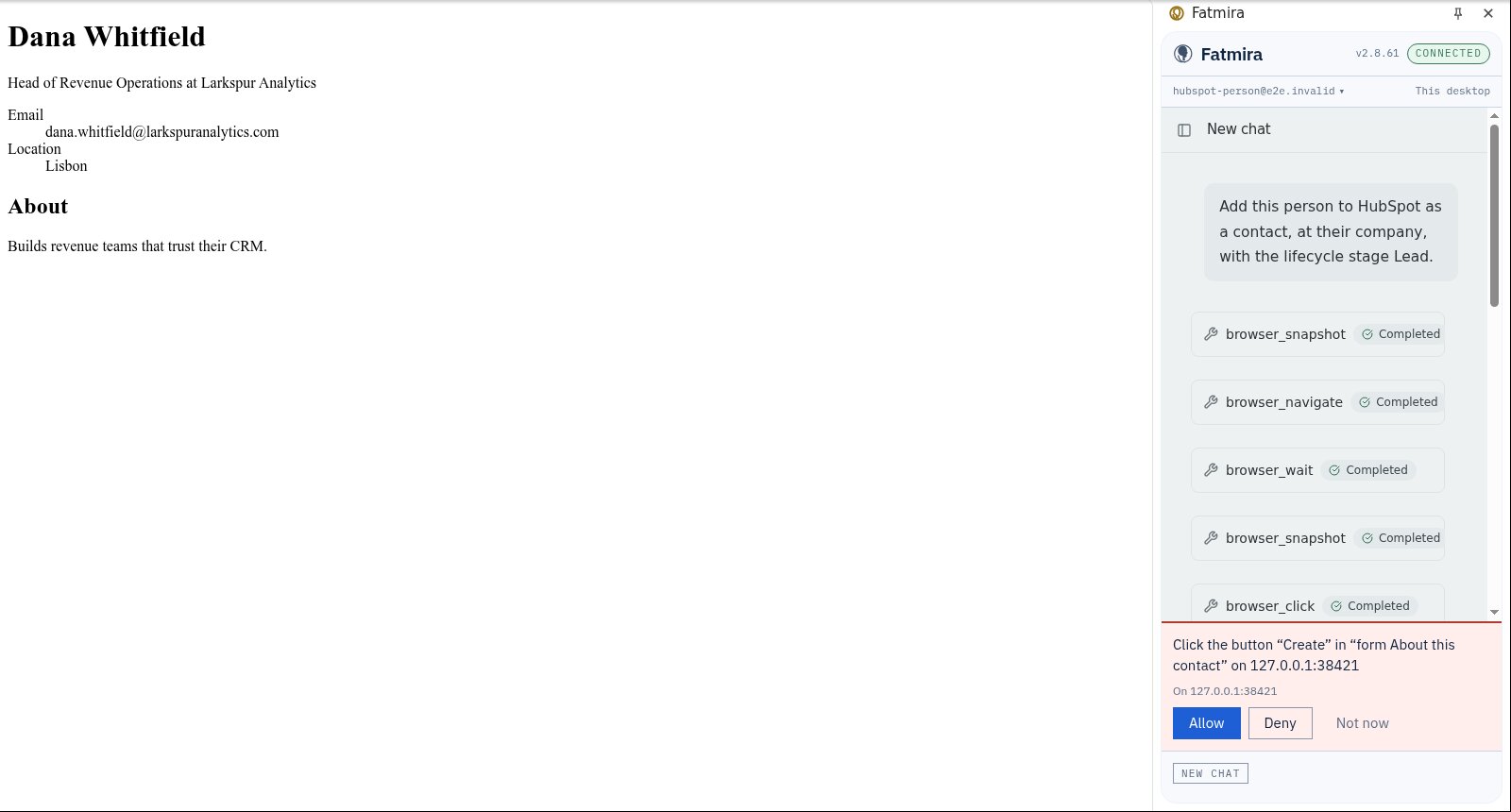
- It checks the CRM first. Fatmira opens your contacts list and looks for the email. If the person is already there, it stops and tells you instead of making a duplicate.
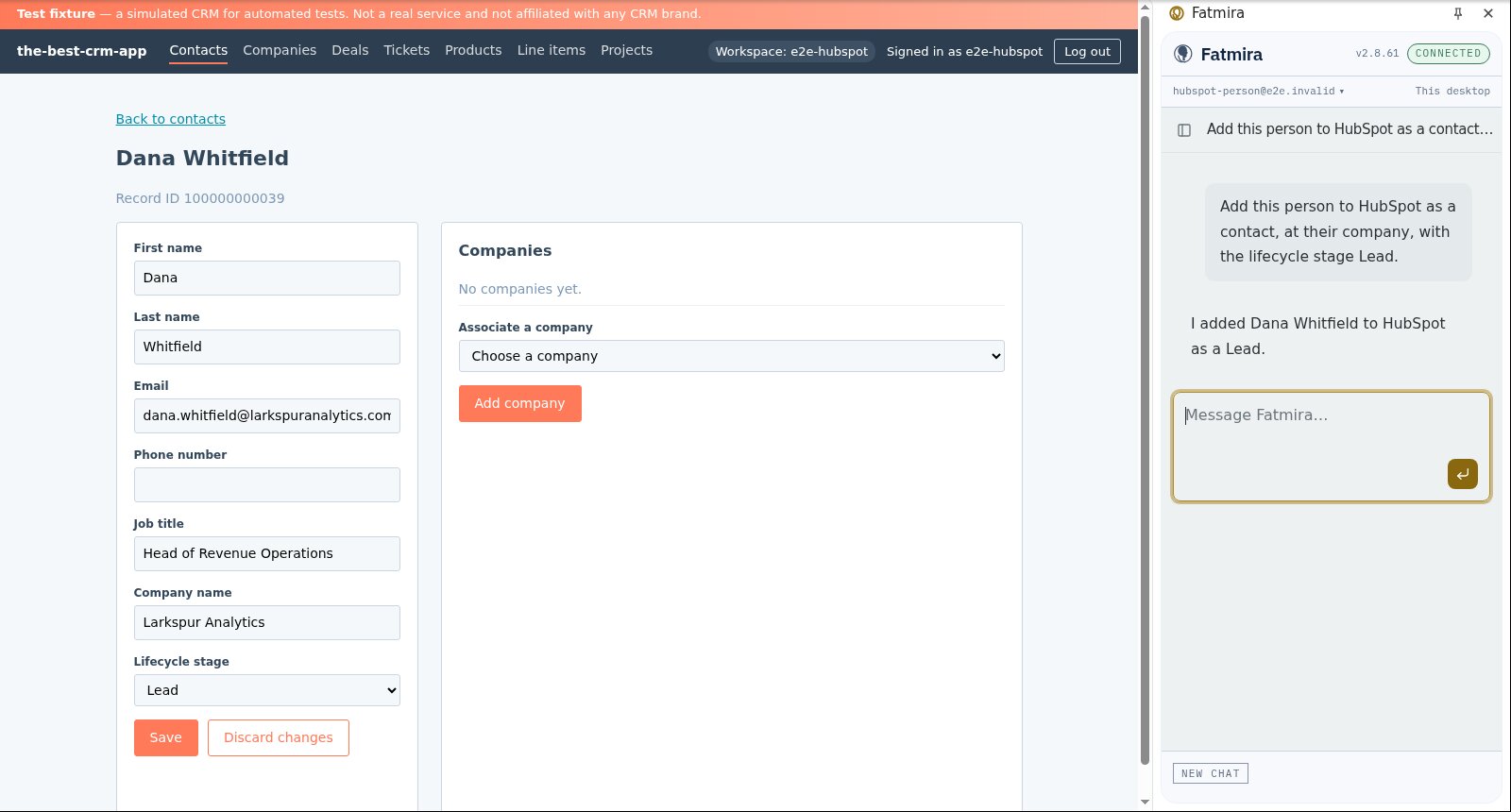
- It fills in HubSpot's own form. It opens Create contact in your logged-in HubSpot and types each field, then picks Lead as the lifecycle stage. It uses no API key or integration, just the screens you use.
- It asks before it saves. Creating a record changes your CRM, so the panel shows the exact click it is about to make. You press Allow or Deny.
- It tells you what it did. Once saved, the panel says who it added and at what stage, and the new contact is open in a tab for you to check.
Watch it run
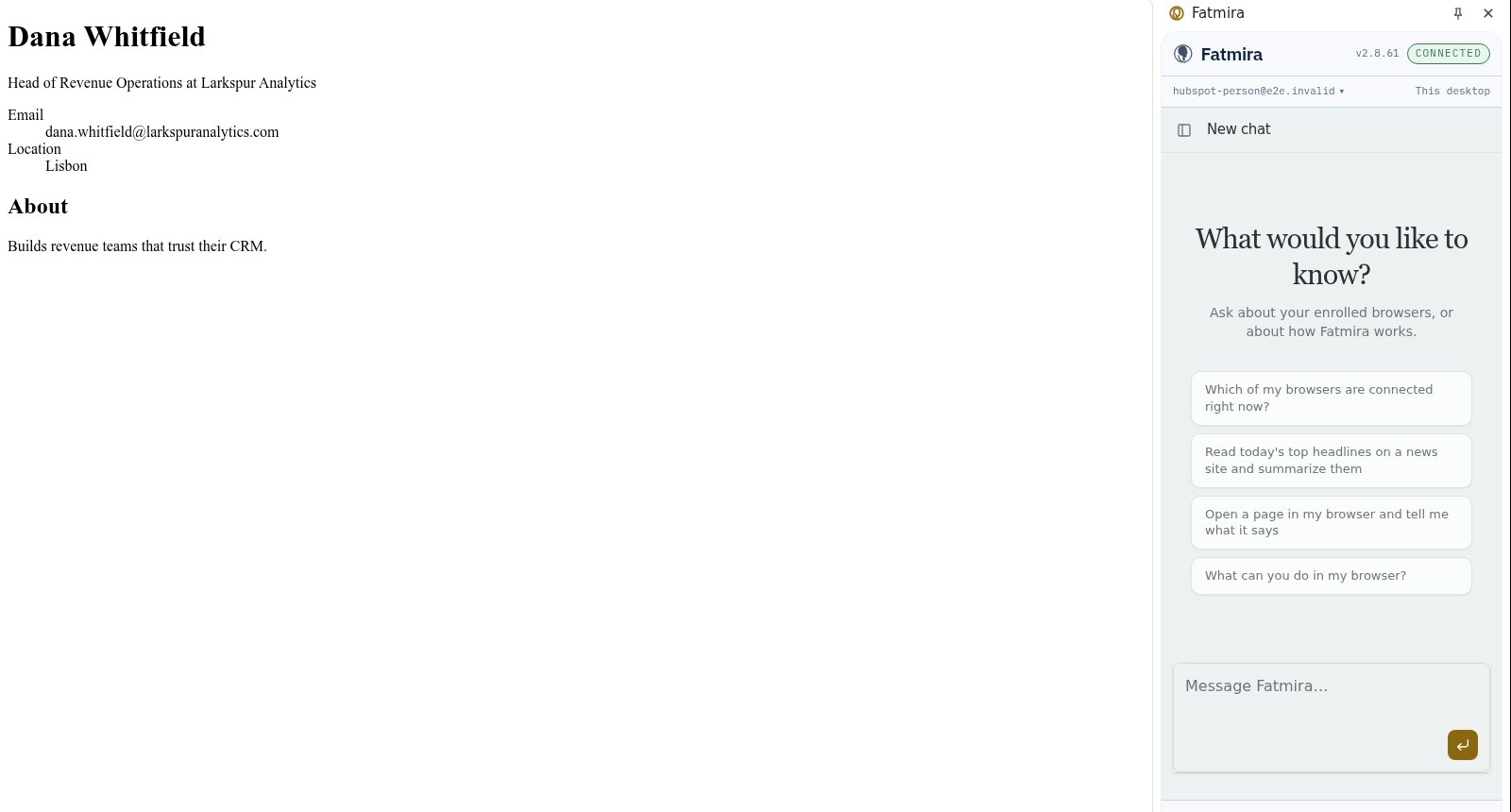
What you get
- Exactly one new contact, with first name, last name, email, job title and company from the page
- Lifecycle stage set to Lead
- No other contact touched
- If the person was already in the CRM, nothing created or changed
- If you press Deny, nothing created
Good to know
- It works only on sites you have allowed, in your own Chrome.
- It reads what the page shows. If the profile hides the email, the contact gets no email.
- It does not associate the company record or add notes unless you ask.
How we know it works
Our browser test suite runs this task in a real Chrome with the real extension, against our HubSpot-style test CRM. The test asks the CRM afterwards whether the contact exists with the right fields, not the chat whether it said so. It covers three cases: approved, already there, and denied.
The screenshots come from that automated run, so the model's steps are scripted and the CRM is our test fixture, not HubSpot itself. A real-model run on the same task is still to come.
Try a variation
- “Add everyone on this event page's speaker list as contacts.”
- “Add this person, and make a follow-up task for Friday.”
- “Add this person to Pipedrive instead.”